2025Full-Stack Engineer
Stacja for scanners
The version of Stacja built for warehouse scanners, phones with a built-in barcode reader. The whole warehouse loop in one app, from checking parts, through picking along the warehouse route and putting away, to stocktaking and shelf lookup. The keyboard shows up only at login. Everything else is touch and scan.
- Skan
- barcode scanning
- Po trasie
- optimised picking route
- Live
- shared data with Stacja
- Nuxt
- Vue
- PWA
- Barcode scanning
Overview
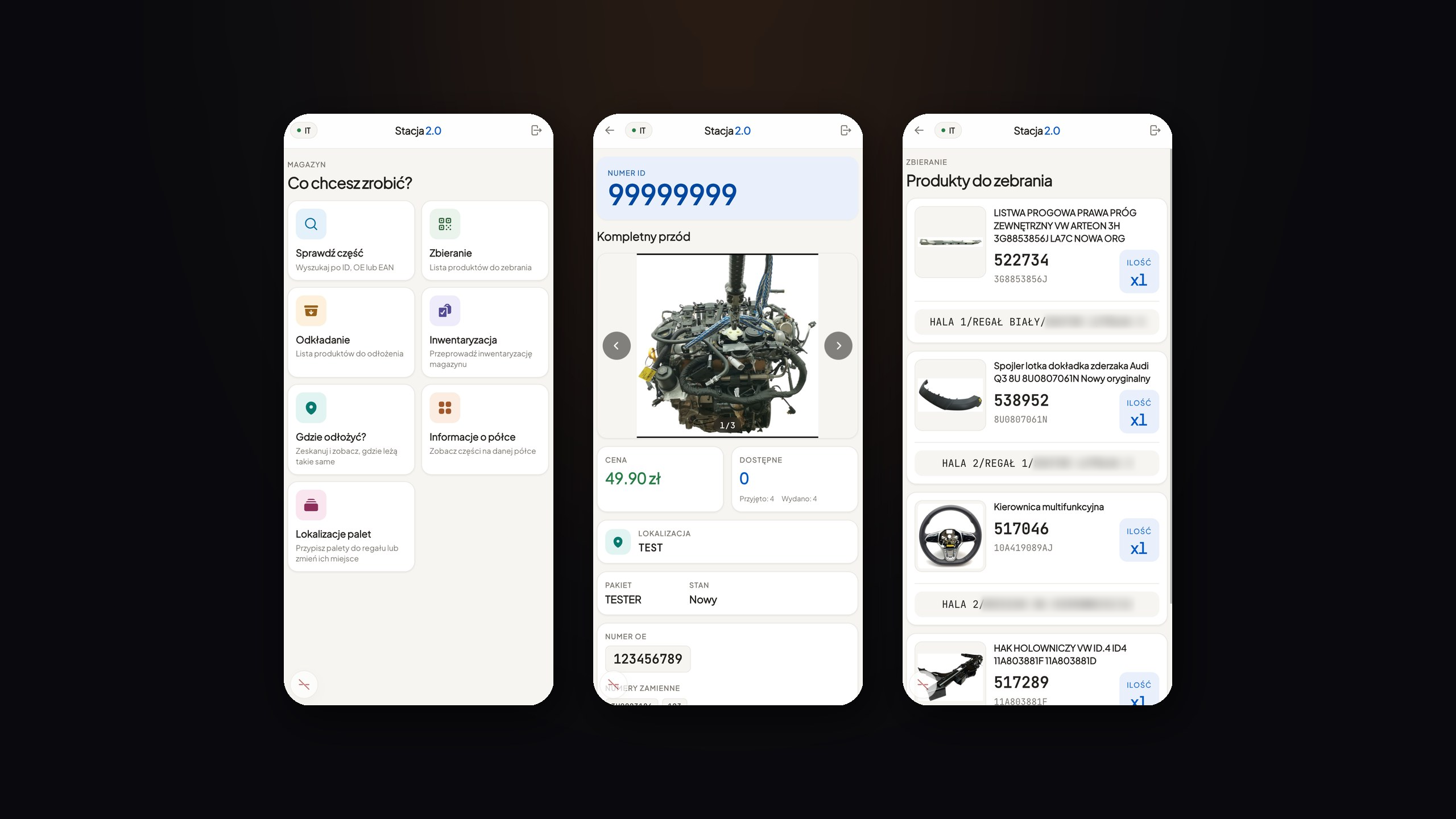
Stacja for scanners is the version of Stacja built for warehouse scanners, phones with a built-in barcode reader. The interface is touch-first. The keyboard hides and can be locked, because you only need it to log in. You sign in to every program in the Stacja ecosystem with the same account.
After logging in you see tiles with every option, meaning check a part, picking, putting away, stocktaking, where to put it, shelf info and pallet locations. A button in the bottom-left locks the keyboard, so instead of typing anything, you scan the code on a part or a location.
The keyboard only pops up at login. Everything else is touch and scan, because on a scanner one hand and pace are what count.
Checking a part
You scan the barcode on the label stuck to the part, the one printed when it was added. You see the data straight away: the EI number, photos, price, available quantity, locations and the OE number.
The tabs add two more things. "The same parts" shows items under the same number, so when something is wrong with one, you grab another. The part history walks through its whole path: added, put away, listed and sold.
Picking
The "To pick" list holds products someone bought, which Stacja took off stock. It's the same picking as in Stacja. You see the part name, its id, how many to bring from the warehouse and the location. You confirm a pick by scanning the part's id.
The list is ordered the way a worker walks the warehouse, so they pick the whole order along the way instead of circling back several times.
Putting away and where to put it
When putting away, you scan the location code and then the code of the part you're placing there. "Where to put it" works the other way round: you scan a part and see where items with the same OE number and the same name already sit. That keeps the warehouse tidy and similar parts in one place.
Stocktaking
You create a stocktake and scan parts to check what should be in a given location. Scanning each item clears the list. Once you pick a location, you see every part to scan, and for several items a counter shows how many you've already scanned.
Shelf info
You scan a shelf and see exactly what's on it.
Results
- The whole warehouse loop on a scanner: checking, picking, putting away, stocktaking and a shelf view in one app.
- One-handed work: the keyboard only for login, everything else touch and a code scan.
- Picking ordered along the warehouse route, so workers don't backtrack down the same aisles.
- Tied into Stacja by the same account and the same data, including orders from the OMS systems.
Got a process that eats your time? Write to me.
Get in touch